ConVox embeds a full-featured dialer inside Zoho CRM — with click-to-call, auto-dialing, real-time lead pop-ups, IVR routing, and MIS 3.0 reporting. No tab switching. No data gaps.
Your call center and Zoho CRM, finally unified
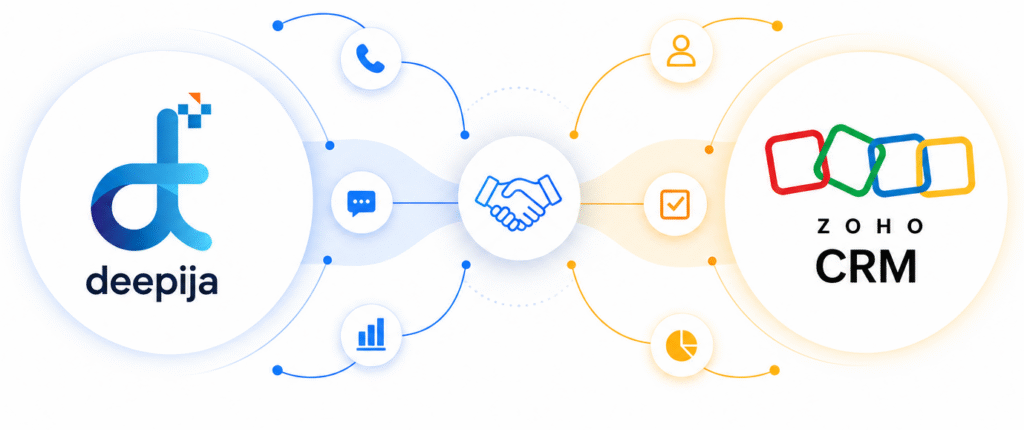
ConVox embeds a full-featured dialer inside Zoho CRM — with click-to-call, auto-dialing, real-time lead pop-ups, IVR routing, and MIS 3.0 reporting. No tab switching. No data gaps.
Boost customer engagement and optimize business communication with ConVox’s seamless integration with Zoho CRM, designed to simplify lead management, sales tracking, customer interactions, and deal monitoring through a unified interface. In today’s fast-paced digital landscape, building strong customer relationships is essential for business growth, and ConVox’s advanced CTI-enabled dialer allows users to access calling features, customer data, and communication history directly within Zoho CRM, improving team productivity, response efficiency, and overall customer experience.

Both modes are fully supported and configured by the ConVox team during onboarding — most customers go live within one business day.
A custom dialer panel is embedded directly in Zoho's interface. Agents get full telephony controls without ever switching applications.
Zoho's native telephony UI is used as the front-end, with ConVox's dialer engine and a centralized communication server powering every call behind the scenes.
| Capability | ConVox Widget | Phone Bridge |
|---|---|---|
| Custom dialer UI | ✓ | — |
| Zoho native UI | — | ✓ |
| Click-to-call | ✓ | ✓ |
| Inbound lead pop-up | ✓ | ✓ |
| Manual dial pad | ✓ | ✓ |
| Mute / Hold / Conference | ✓ | ✓ |
| Call recording in Zoho | ✓ | ✓ |
| Auto-dialing modes | ✓ | — |
Advanced telephony capabilities working seamlessly inside your Zoho CRM workspace. Features marked with a green border are new or enhanced in v4.0.4.

Dial any lead or contact instantly from Zoho — no manual number entry.

Predictive and progressive dialing to keep agents on live calls continuously.

Full caller info and lead data surfaces instantly on every inbound call.
Self-service caller menus with ACD routing to the best-suited agent.

Full recordings and call history linked to each Zoho lead record.

Full in-call controls available directly on the CTI widget inside Zoho.
Automatic call distribution routes callers by agent skill and availability.

Download Manager, Template Manager, and scheduled filter-based reports.
The ConVox team walks you through every step — from token creation to your first live call inside Zoho. Most customers are live within one business day.
Log into the ConVox Zoho Controller. Create the Zoho–ConVox tokens and configure the CTI widget URL and company details.
Map ConVox agents to their corresponding Zoho email IDs from the ConVox User Configuration. Enable click-to-call at the user level.
Enable Zoho integration in the ConVox backend configuration file. Enter the ConVox token details and the Zoho CRM Organization ID from Step 1.
Agents click the Login button on the index page and are redirected to the Zoho profile list, where both mapped and non-mapped agents are displayed.
After selecting the active ConVox–Zoho profile, agents authorize the ConVox PhoneBridge from within Zoho CRM to allow call access.
After login, the ConVox logo button and dial pad appear at the bottom of every lead. The phone icon confirms the integration is active.
Click the ConVox logo button and select the client name to access the CTI widget. Log in as a ConVox agent using Step 2 credentials.
Allow browser notifications and microphone access for the web softphone. Set agent state to IDLE. Incoming and outgoing calls are now active
The dial pad supports manual dialing. The click-to-call button is available beside every lead and contact in Zoho. Both route calls to the CTI widget
When a call lands, the lead’s details pop up on the Zoho page. Agents can click to open the detailed lead record and end calls from the pop-up panel.
After each call, all details are updated under the lead’s Calls tab. Click the lead to view call metadata and play the recording directly inside Zoho.
Built for sales and support call centers that need to move faster without compromising data quality or compliance.